
If you've upgraded your Galaxy phone before and transferred your settings from your old phone to the new one using Smart Switch, you know how convenient it is. It may be one of the best things about Samsung Smart Switch, but it can also backfire.
Here's the perfect example. If you've just bought a new Galaxy Z Fold 8, you may want to think twice before restoring all of your settings. At the very least, there's one display setting you need to double-check and possibly avoid importing altogether.
Check Galaxy Z Fold 8 offers
Be careful when restoring screen layout and zoom
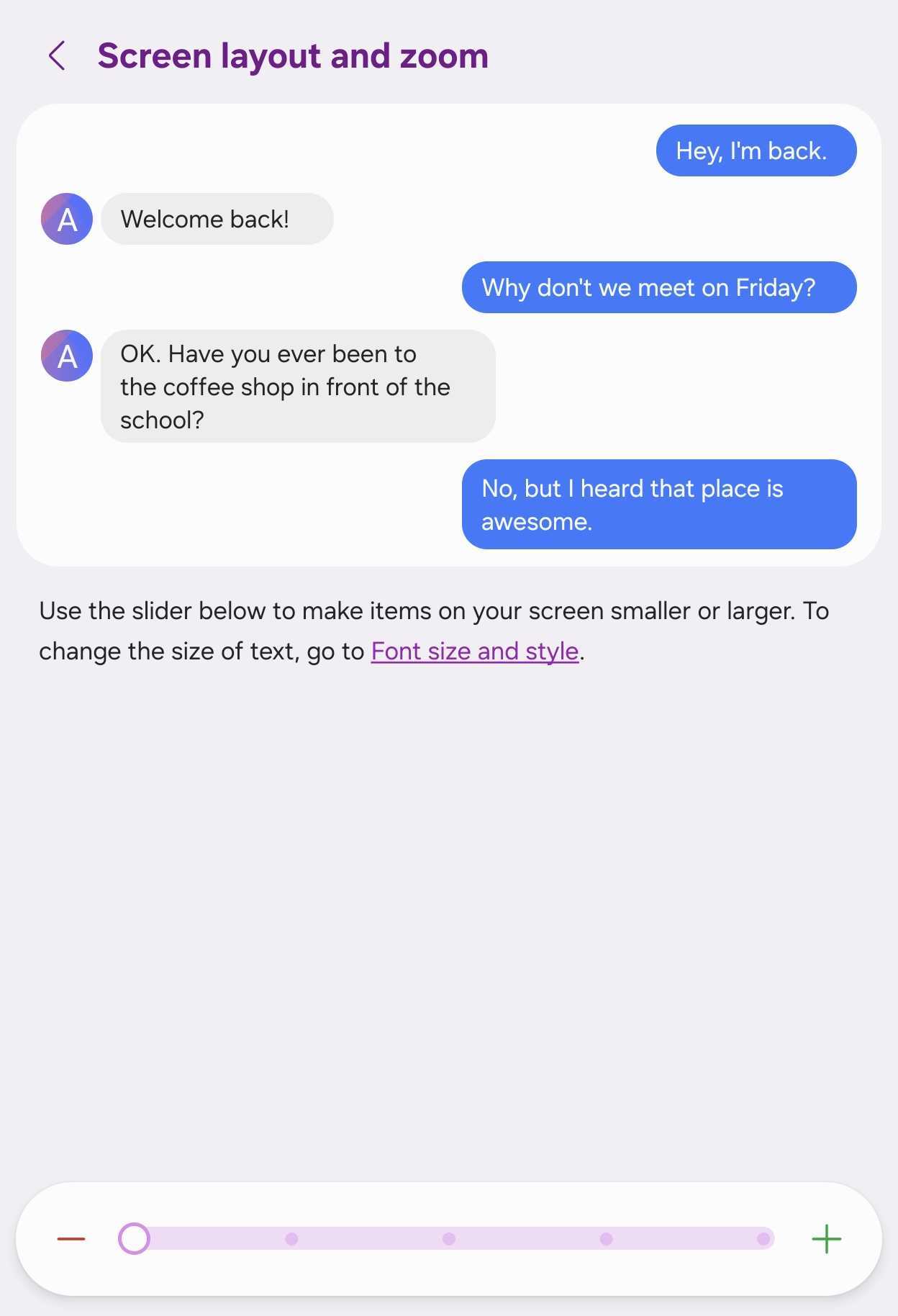
Samsung's One UI has a display setting simply called “Screen layout and zoom.” It controls the overall size of UI elements across the system and apps using a slider.
Move the slider to the left, and everything gets smaller. Move it to the right, and everything gets bigger. It's that simple.


On most Galaxy phones, the slider is set in the middle by default. The Galaxy Z Fold 8 is different. Samsung moved its default setting one notch to the left.
That's intentional. The Fold 8's 5.5-inch cover screen is smaller than the displays on Samsung's traditional slab-style phones, so the company uses a lower default zoom level to make more content fit comfortably on the cover screen.


The problem is that if you're importing settings from an older slab-style Galaxy phone, you'll likely have a higher zoom level than Samsung recommends for the Fold 8. That can cause UI issues, either across One UI or in select third-party apps.
NOTE: Screen zoom settings apply universally to both the cover and foldable screens, regardless of whether you're mirroring your cover screen to the inner one.
What settings to look out for on your Fold 8?
First, check Settings > Display > Screen layout and zoom and make sure the slider is at the Fold 8's default position, one notch to the left of center.
Even if things look small at first, we recommend giving the default setting a couple of days to see if your eyes adjust. If you find the UI too small and uncomfortable after that trial period, you can try increasing the general zoom level or adjusting individual app zoom options instead.
By default, apps follow the system-wide zoom level you selected in the Fold 8's display settings. If an app still doesn't look right, you can select a different zoom level for that app without affecting the rest of the phone's UI or other apps.
Go to Settings > Advanced features > Labs > App screen zoom. Select the app and a zoom level for it.


There are two other ways to adjust the size of the interface:
- Font size and style: Available in Display settings.
- App size on Home and Apps screens: Pinch the home screen, then tap Settings.
All in all, Samsung configured its cover-screen UI around a different display scaling value than the one used by most Galaxy phones. If you're a Fold 8 owner, you may have to adjust or tweak the UI a little.
If you are transferring data using Smart Switch, you may want to avoid your old phone settings. At the very least, you'll want to check the Screen layout and zoom setting after the transfer.
Even if you end up disliking the small UI, we still recommend giving the Fold 8 a try through Samsung's intended lens first. Bring any optional adjustments later.


Post a Comment