
The Samsung Galaxy S26 Ultra has a 5000mAh battery and supports Super Fast Charging 3.0[1] at 60W wired[2] and 25W wireless[3]. In ideal conditions it will comfortably last a full day, but how long you get depends heavily on how you use it and which settings are active.
These tips cover both ways to extend daily battery life and ways to keep the battery healthier over the long term.
Here is a quick summary of what makes the biggest difference:
- Enable Power saving mode for lighter use days or when you need to stretch the battery.
- Turn on Battery Protection to limit the maximum charge and reduce long-term battery wear.
- Use adaptive brightness rather than keeping the screen at full brightness manually.
- Reduce screen timeout so the display turns off sooner when idle.
- Keep the display at FHD+ if you want to save power, or switch to QHD+ for sharper visuals.
- Check background app activity and limit apps you rarely use.
- Use Wi-Fi instead of mobile data when available, and turn off location for apps that don't need it.
How does Power saving mode work on the Galaxy S26 Ultra?
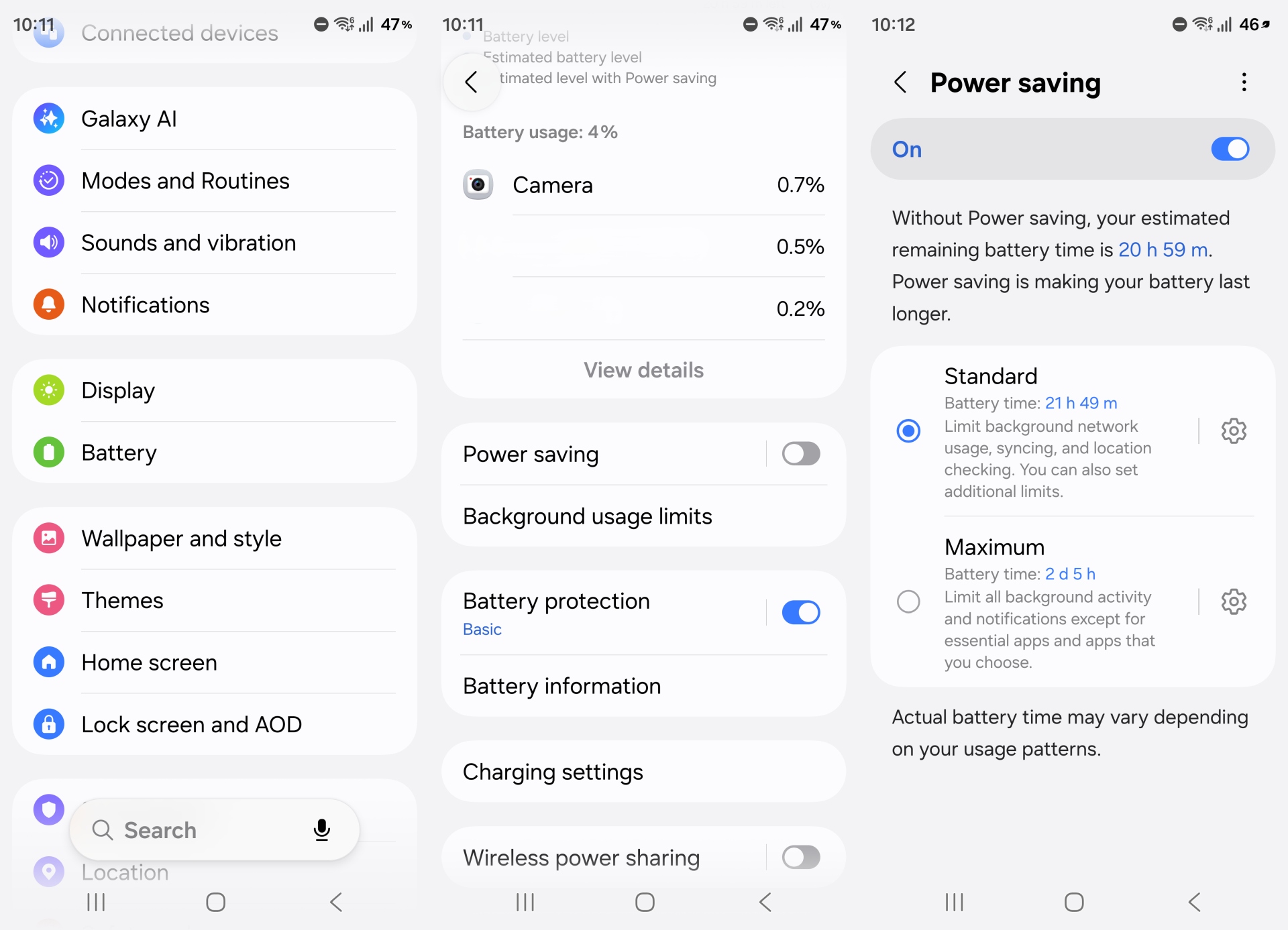
Power saving mode reduces background activity, limits vibration, and restricts some features to extend battery life. You can turn it on from Settings > Battery > Power saving, or by long-pressing the battery icon in the Quick Panel.
There are two levels. The standard Power saving mode limits background network usage, syncing, and location checking, with additional limits available to further battery savings.
Maximum power saving goes further — it limits all background activity and notifications except for essential apps and apps that you choose.
There is also an Adaptive power saving option, which automatically enables Power saving based on your usage patterns and the time of day. You can turn this on from the three-dot menu inside the Power saving settings.

What is Battery protection on the Galaxy S26 Ultra?
Battery protection is a feature that limits how far the Galaxy S26 Ultra charges in order to reduce long-term battery wear. Lithium-ion batteries degrade faster when kept at or near full charge for extended periods. By capping the charge level, the feature helps preserve battery health over the lifetime of the phone.
You can find it at Settings > Battery > More battery settings > Battery protection. When enabled, the phone limits charging to a set maximum rather than always charging to 100%.
The Adaptive option goes a step further — it learns your sleep schedule and times the charge so the battery reaches full capacity shortly before you typically wake up, rather than sitting at 100% overnight.
Battery protection is turned off by default. It is worth enabling if you regularly charge overnight or leave the phone on charge for long periods.

How does screen brightness affect battery life on the Galaxy S26 Ultra?
Screen brightness has one of the most direct impacts on battery life on the Galaxy S26 Ultra. Keeping the screen at high brightness for extended periods will noticeably reduce how long you get between charges. The most practical approach is to use adaptive brightness, which automatically adjusts the screen based on ambient light rather than keeping it at a fixed level.
You can toggle adaptive brightness from the Quick Panel or at Settings > Display > Adaptive brightness. Over time it learns your preferences and adjusts more accurately to your usual environments.
Reducing the screen timeout also helps. If the display turns off after 15 or 30 seconds of inactivity rather than two minutes, the phone uses less power on an idle screen. You can change this at Settings > Display > Screen timeout.
Should you use FHD+ or QHD+ on the Galaxy S26 Ultra for battery life?
The Galaxy S26 Ultra ships with the display set to FHD+ (2340 x 1080) by default. You can switch to QHD+ (3120 x 1440) for sharper visuals at Settings > Display > Screen resolution. QHD+ requires more power to render the additional pixels, so if battery life is a priority, staying on FHD+ is the more efficient choice.

For most everyday use — browsing, messaging, and video — FHD+ is sharp enough that most people would not notice a difference in day-to-day use. QHD+ becomes more noticeable when reading small text or viewing detailed photos at close range.
Does the adaptive refresh rate help with battery life?
The Galaxy S26 Ultra’s display can scale its refresh rate between 1Hz and 120Hz automatically, depending on what is on screen. When you are reading a static page or the screen is idle, it drops to a low refresh rate to save power. When you are scrolling or watching video, it ramps up for a smoother experience.
This is enabled by default. To check, go to Settings > Display > Motion smoothness and make sure it is set to Adaptive rather than Standard. Keeping it on Adaptive gives you the best balance of smoothness and efficiency without any manual management.

How do background apps affect battery life on the Galaxy S26 Ultra?
Apps running in the background can consume battery even when you are not actively using them. The Galaxy S26 Ultra has a built-in tool to manage this. Go to Settings > Battery > Background usage limits, and enable Put unused apps to sleep.
This monitors which apps you use regularly and which you do not, and restricts background activity for apps that have not been used in a while.

You can also manually put specific apps into Sleeping or Deep sleeping mode from the same menu. Deep sleeping apps cannot run in the background at all and only activate when you open them directly.
Does Wi-Fi or mobile data use more battery on the Galaxy S26 Ultra?
Wi-Fi generally uses less battery than mobile data, particularly in areas with a strong signal. If you are at home or in an office with reliable Wi-Fi, keeping mobile data off and using Wi-Fi instead is a simple way to reduce power consumption.
Location services can also have a meaningful impact, particularly if multiple apps are actively using GPS. You can review which apps have access to your location at Settings > Location > App permissions, and switch apps that do not need precise location from ‘Always’ to ‘Only while in use’ or turn them off entirely.
What is the best way to charge the Galaxy S26 Ultra?
The Galaxy S26 Ultra supports Super Fast Charging 3.0 at 60W wired and 25W wireless. At 60W, the phone reaches approximately 75% in around 30 minutes. Wireless charging at 25W is convenient for desk or bedside use and can charge the phone up to 50% in 33 minutes.
If you want to charge more slowly overnight to reduce heat, which is one of the factors that accelerates battery wear, you can plug in and leave Battery protection enabled. The Adaptive mode will manage the charge rate so the battery is not sitting at maximum capacity for hours at a time.
[1] Super Fast Charging (SFC) 3.0 requires a USB Power Delivery (PD) 3.1 (or higher) compatible device supporting Direct Charging.
[2] 60W charger sold separately.
[3] 25W wireless charger sold separately.


Post a Comment