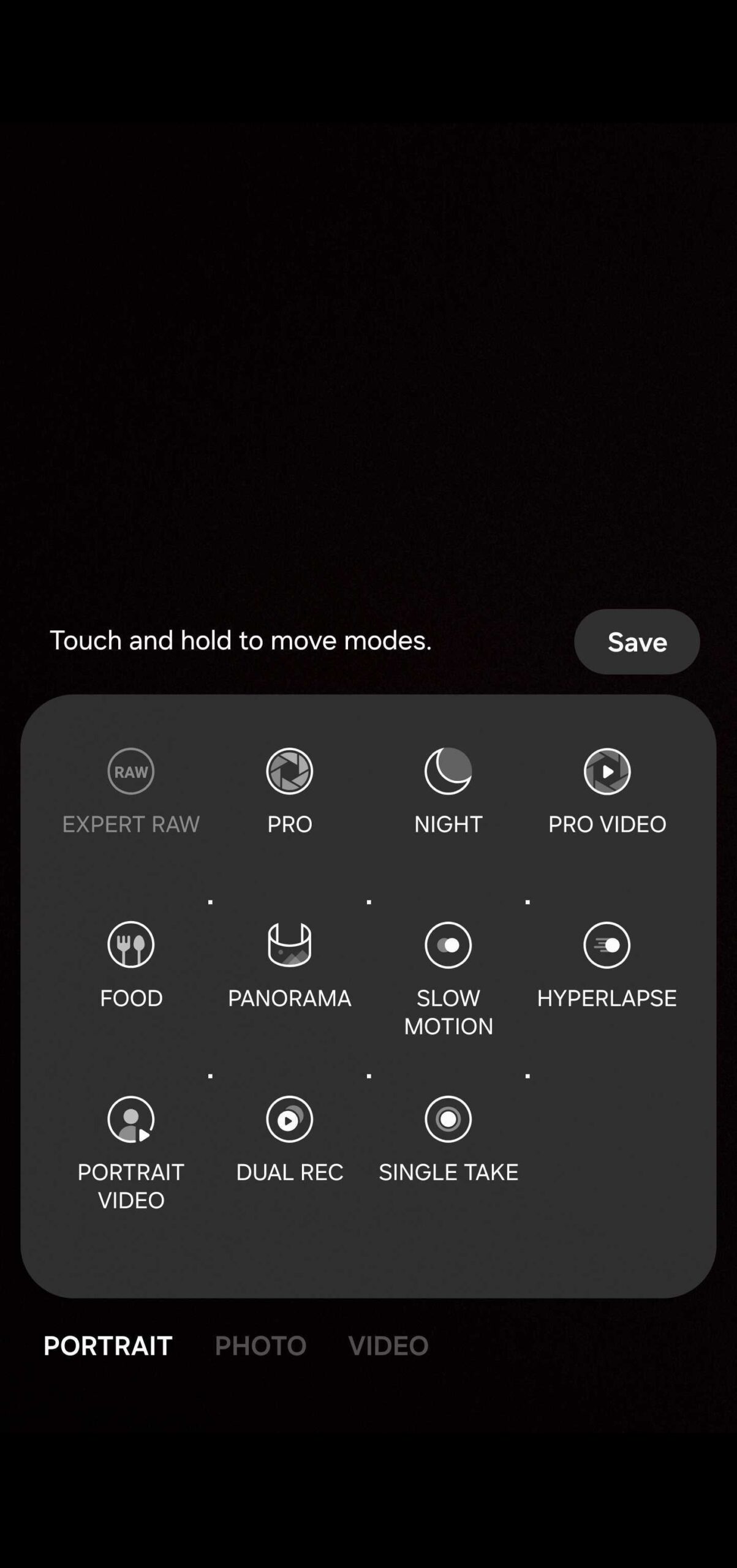

The default, non-Pro shooting modes in the Camera app on Samsung Galaxy devices are streamlined for a straightforward experience, ideal for quickly capturing photos or videos.
These modes use simple UIs that work well in most cases. However, to remain user-friendly, they automate many camera settings. This creates some limitations, not just for photo and video capture, but also for audio recording.
For example, in the standard Video mode, the Samsung Camera app uses the phone’s built-in microphones by default. But what if you want to use an external mic or the ones in your Galaxy Buds while recording video?
You can. You just need to switch to Pro Video mode inside the Camera app on your phone. This mode offers additional controls for both video and audio. More importantly, it lets you choose which microphone is used for recording. Here’s how to change that setting.
Choose which microphone captures audio in video recordings
First, open the Camera app on your Galaxy phone, swipe to and tap More, and select Pro Video. You can also drag and drop the mode to the main toolbar for quicker access in the future.


Then, in the Pro Video UI, tap the microphone icon at the top (in portrait orientation) and choose one of the following options:
- Omni: Captures sound equally from all directions
- Front: Focuses on sound coming from the front of the phone
- Rear: Focuses on sound coming from the back of the phone
- USB: Uses a connected USB microphone instead
- BT (Bluetooth): Uses Bluetooth microphones, including Galaxy Buds or other headphones
- BT MIX: Combines audio from a Bluetooth mic and the phone’s internal microphones


Quick tip: When using Pro Video, the microphone icon in Samsung's Camera viewfinder changes based on the selected audio input. You can check it at a glance and see which microphones are active without opening the menu.
If you want to capture even better photos and videos with your phone, you may want to check out the latest creator-focused features introduced by the Galaxy S26 Ultra. The new Galaxy Buds 4 Pro earbuds also have decent microphone quality. You can read more about them in our review.


Post a Comment